Guide
How to Use the CV Builder
Seven steps from blank to finished — where each feature lives and what it affects. For advice on what to actually write, see How to Write a CV.
On this page
- 01
Edit right on the CV
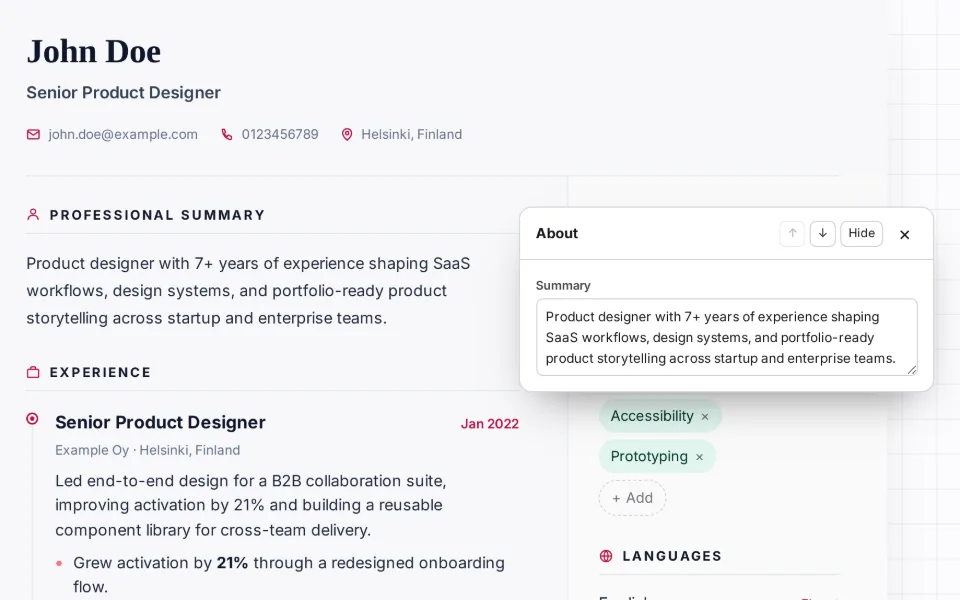
The builder opens in Direct Edit: the CV itself is the editor. Click any text on it — your name, a job title, a bullet — and type. Each section's pencil opens all its fields beside it, where you add, remove, duplicate, and reorder entries; on most two-column templates you can also move a section between the main column and the sidebar. The rail on the left jumps to each section, the Sections menu hides the ones you don't need, and Load demo CV fills in example content to start from.
- 02
Prefer a form? Switch to Classic
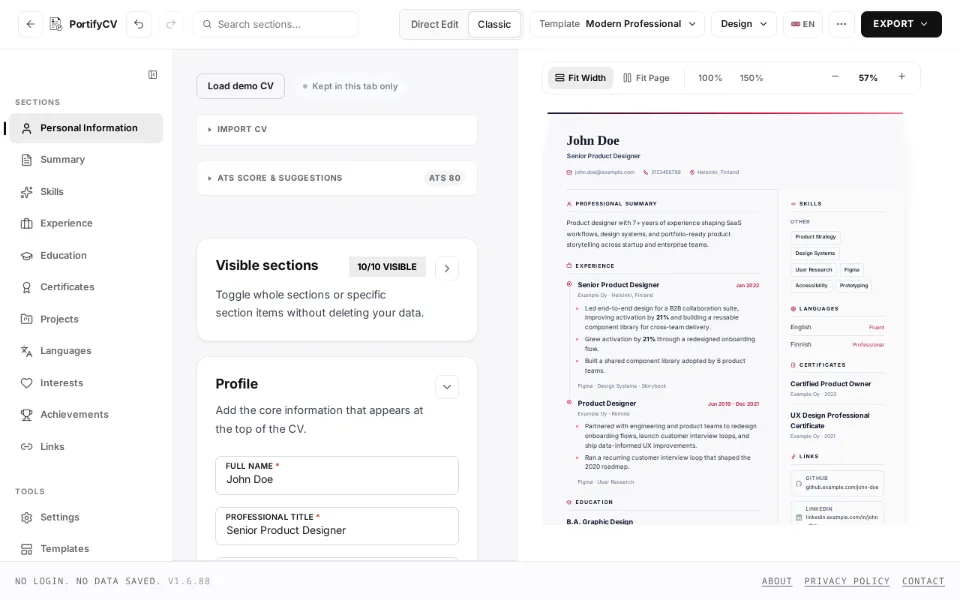
The Direct Edit / Classic switch in the top bar swaps to a form view: the rail lists every section, the form sits in the middle, and the preview on the right updates as you type. Use the Visible sections panel at the top of the form to switch off anything that doesn't apply — your data stays either way. Both modes edit the same CV, so switch whenever you like. The tools in steps 3 and 5 live in Classic.
- 03
Tighten your experience bullets
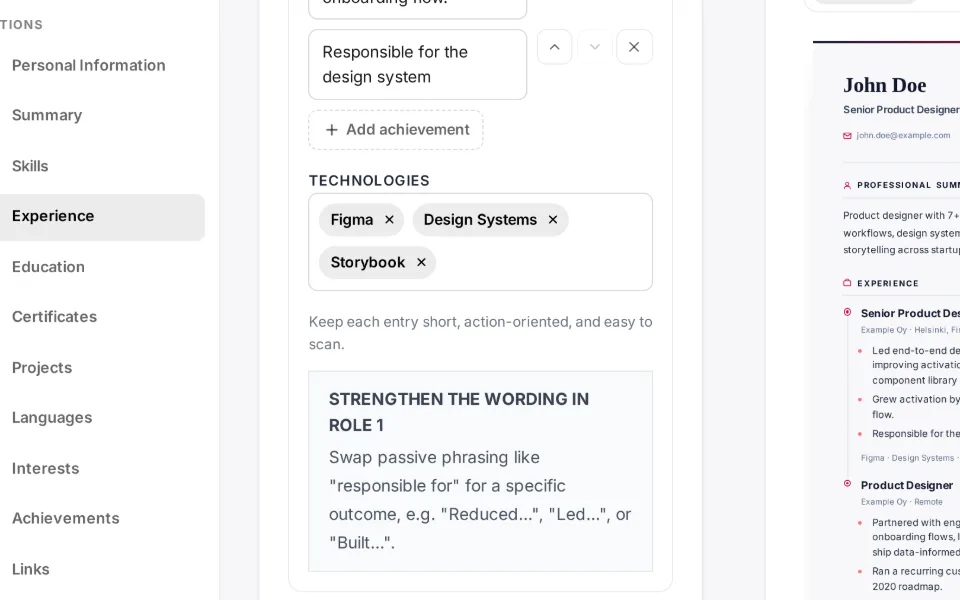
In Classic mode, weak bullets get flagged inline next to the field as you write: passive phrases like "responsible for," openers that aren't a strong verb, and bullets with no measurable number. The ATS score & suggestions panel totals them up.
- 04
Pick a template — your content stays put
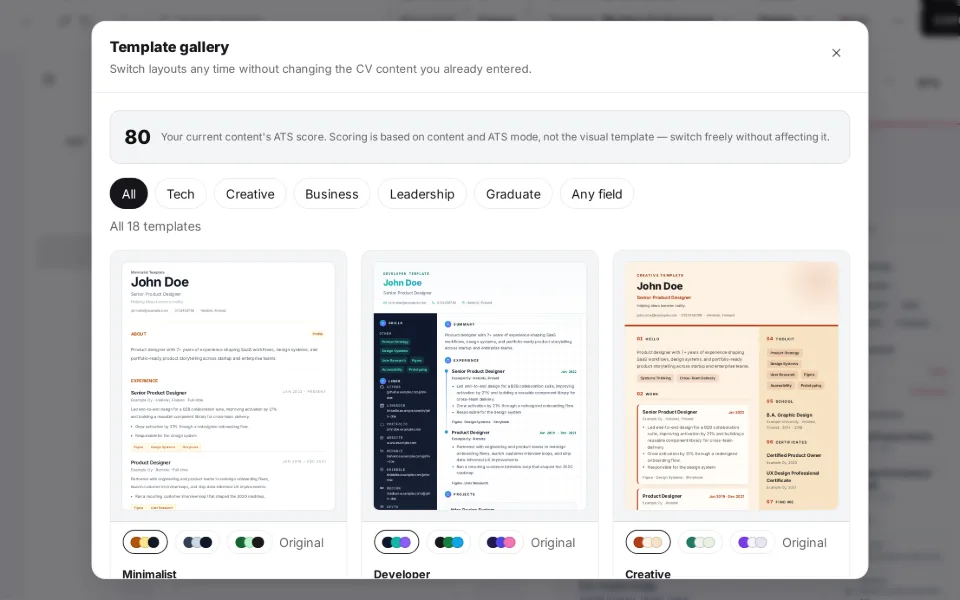
Swapping templates never touches your text, so it's safe to try all 18 before deciding. Each one uses a different set of sections — the ones a template doesn't use are tucked out of the editor and preview until you switch back. Each template also has three looks (a colour palette, a font, and a heading colour), picked from Design in the top bar.
See all 18 templates ahead of time.
- 05
Check it against the job posting
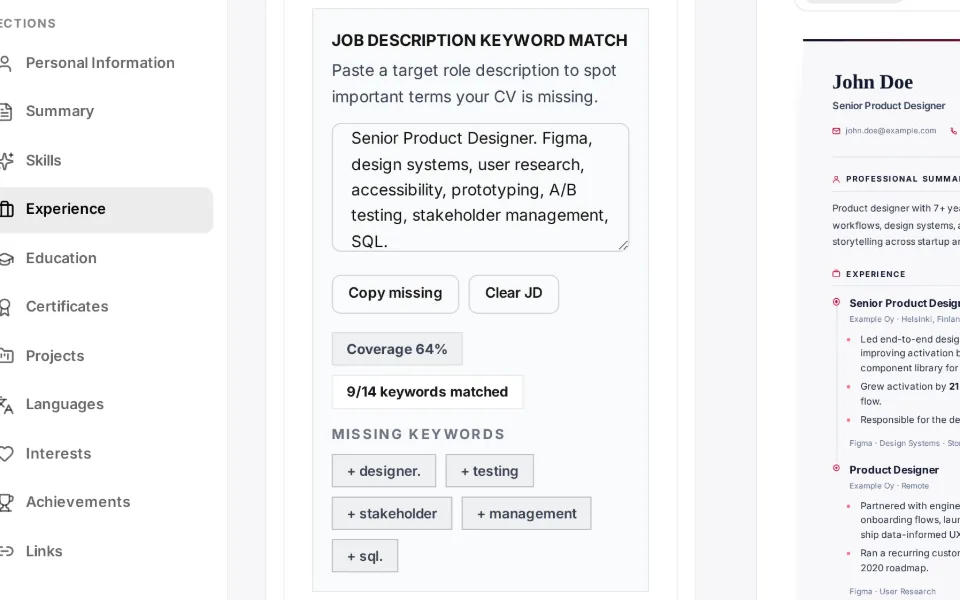
In Classic mode, open the "ATS score & suggestions" panel above the form fields. Its ATS-friendly-mode toggle flattens the preview to the single-column layout applicant tracking systems can parse (in Direct Edit, the ATS view button at the top right of your CV does the same), and pasting a job description lists the keywords your CV is still missing.
- 06
Export a file or share a link
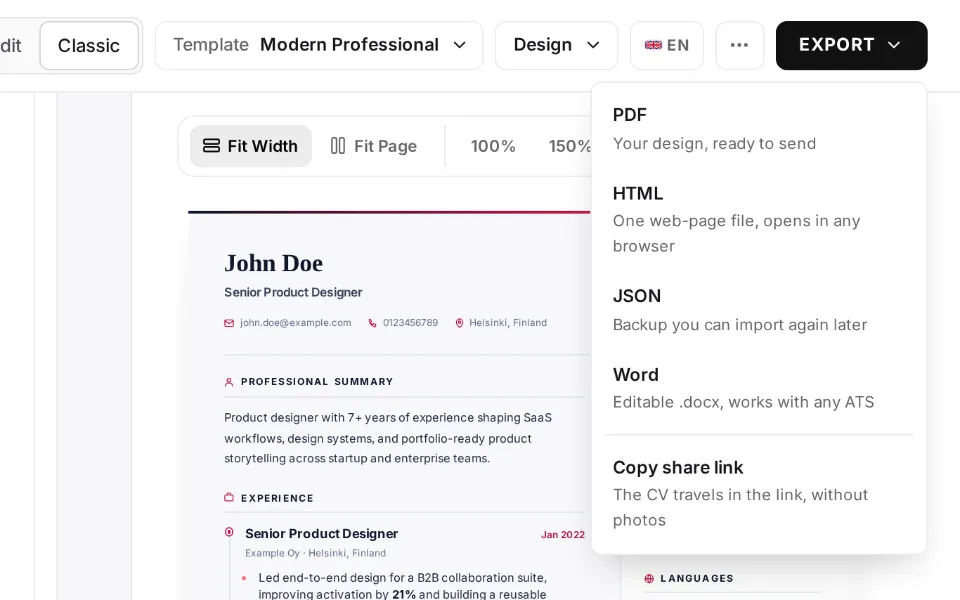
The Export menu offers four formats: PDF for applications, Word for editing in another program, HTML for the web, and JSON as a backup or to keep editing later. Copy share link, at the bottom of the same menu, encodes the whole CV into the URL — never sent to a server, and images don't fit. Cover letter, in the rail on the left (on a phone, in the ⋯ menu), drafts an editable cover letter from your CV.
- 07
Your work survives an accidental refresh
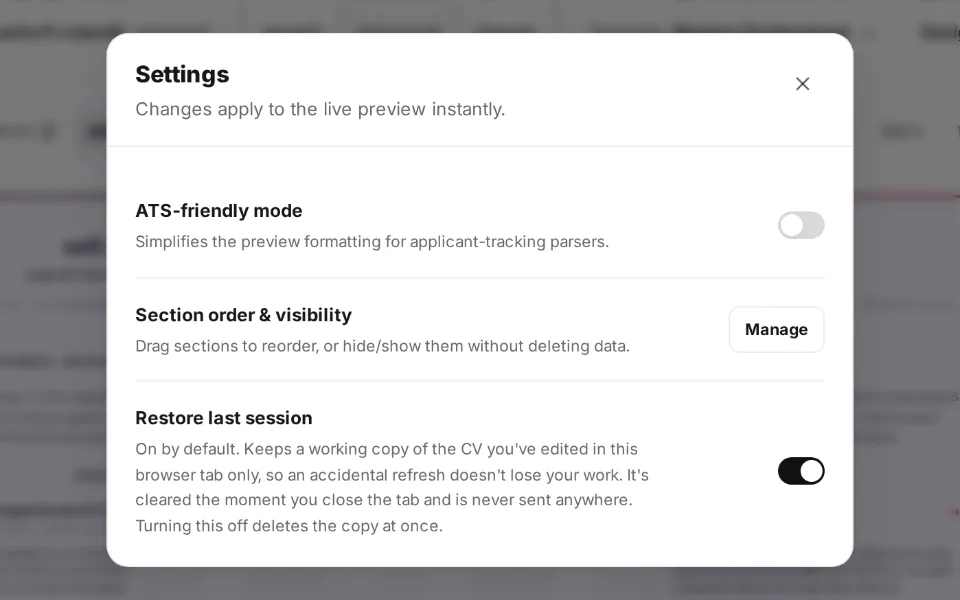
"Restore last session" is on by default: a working copy of the CV you have edited is kept in that tab only, so refreshing the page does not lose it. Closing the tab clears the copy, so export JSON if you want to carry on later. You can turn the feature off in Settings.